Beyond Category (BC) can import albums from Discogs.com via the Import Discogs window. Select this window from the File->Import->Import Discogs menu item. To use this window, you must first know the Discogs.com id for the album to be imported. To find this, look up the album to be imported from the Discogs.com website. The release id will generally be found in the upper right corner of the page for a release. Releases are prefaced with an “r”. Don’t confuse master release records with individual release records. Masters are prefaced with an “m” and as they are a record of several similar releases, they are not suitable for import. Below is an example of where to find the Discogs id for the Miles Davis album, Kind of Blue.
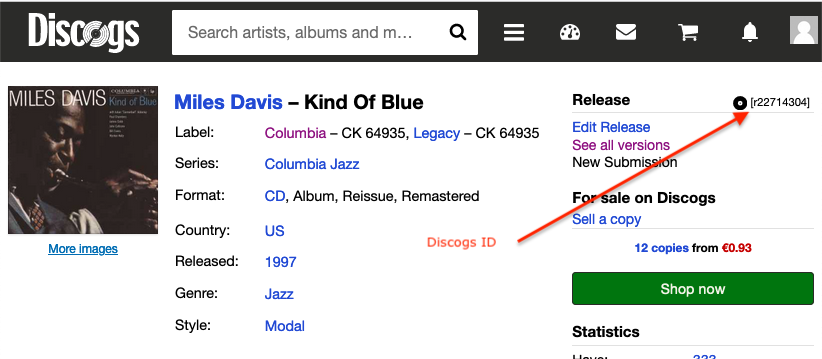
To start, pasted the Discogs ID into the Discogs Album Id field of the Import Discogs window and then press the Get Album button. On doing that, BC will retrieve the JSON file from Discogs and parse it into the window as shown below.
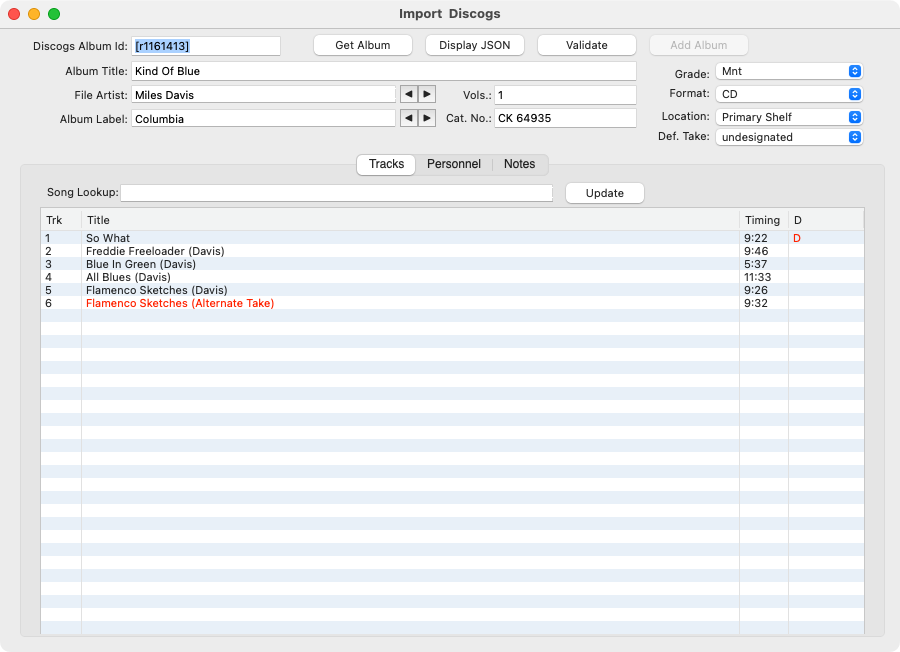
On import from Discogs the album data is loaded into the Import Discogs window and given the initial validation. BC will attempt to match this information with the songs, personnel names, instruments, and label that are already entered in BC. What is not found will be displayed in red text. It is up to the user to reconcile these unmatched data items before BC will allow the album to be loaded into the database.
Beyond Category will consider a data element as matching only if there is an exact match and only if there is only one item with the name on the Beyond Category database.
To reconcile the mismatches, use the Song Lookup field to indicate to BC the correct title. In the case where a title is not found on the database, use the Songs/Personnel/Labels window to add it to the database.
The Trk column in the track simply reflects the order of tracks in the Discogs JSON file and may not be accurate to the actual track order on the album. For instance, if importing an LP, the side is ignored. Unfortunately, there does not appear to be a standard for entering side and track information in the Discogs JSON so BC does not attempt to parse the information. The side and track order can be modifed easily in the Track Info tab of the Albums window after importing the album. Also, Discogs allows the entry of faux tracks to act as a header for subsequent tracks. BC will show them for informational purposes, but they are not importable and should be deleted from the list before validation.
The Grade, Format, Location and Def. Take popup menus are not information processed by the import. Instead, what is shown are defaults. It is up to the user to adjust these accordingly. These are required data items for adding and album record, so it has to be set on the import window. Items like genre are not required and not handled during import. Instead, the genre for an album can be set using the Album Tags on the Albums window after the import is completed.
The Display JSON button can be use to display the JSON file used for the import in a separate window. This is only useful for those that understand JSON format and may want to see the raw data. There is no real need to use this to be successful with an import, but it is there for convenience for those that want to see it.
Personnel Panel for Import Discogs
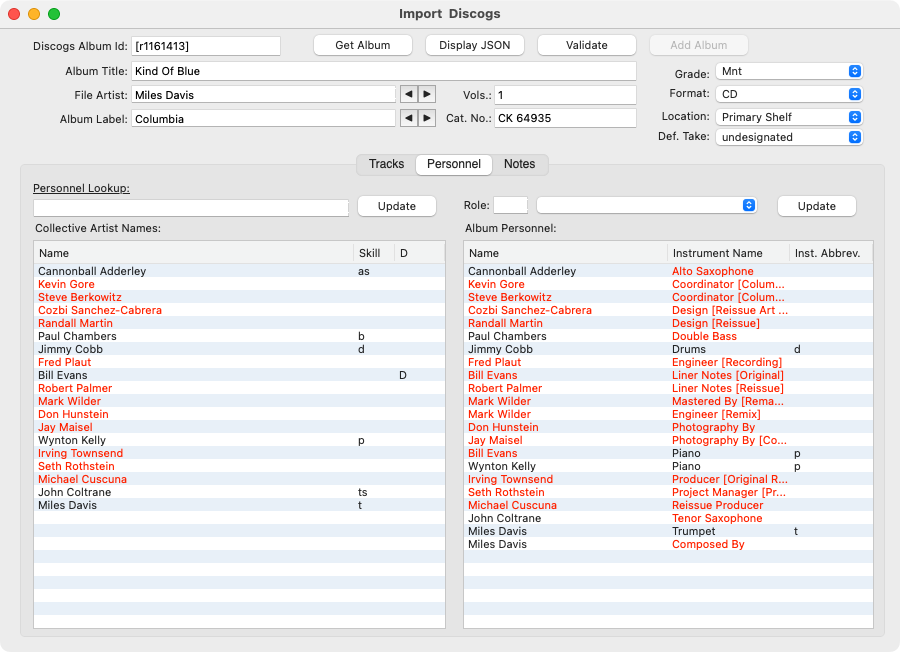
The Personnel panel allows for the reconciliation of personnel for the album. The Collective Artist Names list on the left contains all the unique names contained in the Discogs JSON. The Album Personnel list on the right contains all the role instances of the Artist List names.
There are many roles that will not be of interest to most BC users. Roles related to the production of the album are not usually of interest to most music collectors, but these can be handled on BC if entries are made in the Personnel and Instrument windows to correspond with them. In most cases, users will simply remove production related names by selecting them in the Album Personnel list and using the delete key. If all occurrences of a name in the Album Personnel list are removed, then the entry in the Collective Artist Names is removed also.
Names with a D in the D(uplicate) column are duplicate matches in the BC databases. The Personnel lookup can be used to reconcile the name version that is correct. Reconciling names in the Artist Names list will also reconcile all the corresponding versions in the Album Personnel list.
Roles in the Album Personnel list can be reconciled using the Role lookup field. Selecting items in the list with roles in red and then pressing the Update button after looking up the correct role will handle this. In some cases, an artist with a role we don’t care about is listed. In this case, Miles Davis is listed as a composer in addition to Trumpet. BC lists composers with the song and does not use composer as a role. In this case, the entry for Miles Davis as “Composed by” can be removed from the Album Personnel list using by selecting it and using the delete key.
Notes Panel for Import Discogs
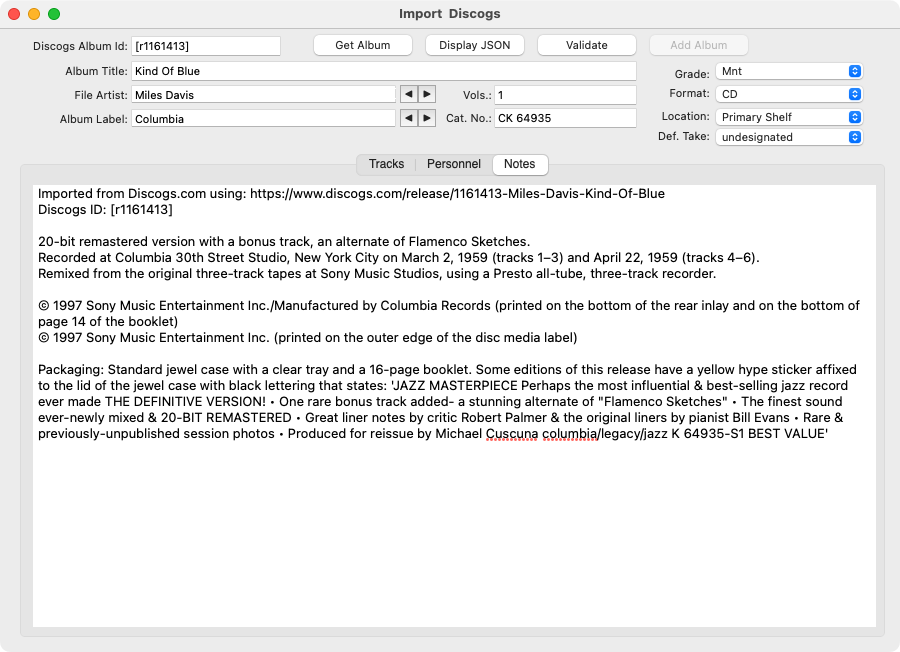
If the Discogs JSON includes album notes, they will be displayed in the Notes panel. Here, they can be edited as needed before adding the album to the BC database.
The first two lines of the notes indicating the import URL and the Discogs ID are added by the Import Discogs window to indicate the source.
Adding the Album to the BC Database
Use the Add Album button to add the album to the BC database. The Add Album button will not be activated for use until the all the data on the Import Discogs window passes validation. Should any field in the Import Discogs window be changed after the Add Album button is enabled, the button will revert to disabled until another Validate is successfully performed.
|
Download
Beyond Category Macintosh Version: 8.7 
|
Download
Beyond Category Windows Version: 8.7
|